
The Settings panel is the activity bar item at the bottom-left of the IDE. It controls which compiler backend and hardware target to use for every build in the current project.
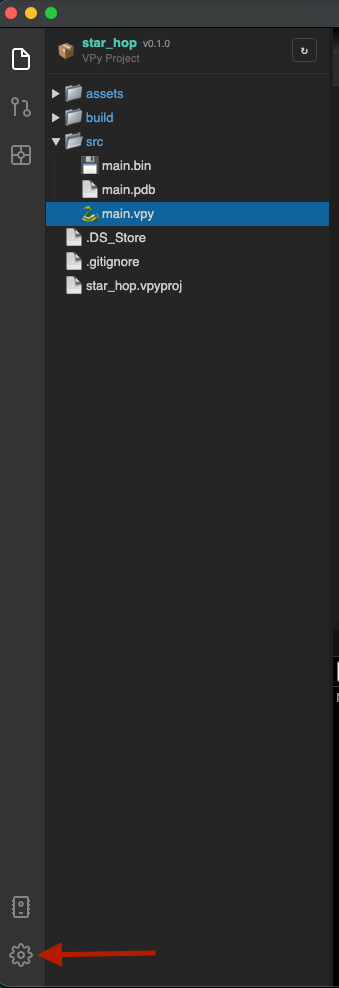
Compiler Backend
Two backends are available. The choice is per-installation (not per-project) and persists across sessions.
| Backend | Status | Description |
|---|---|---|
| Buildtools | ✅ Recommended | Modular 9-phase Rust pipeline. Supports multibank ROMs, PDB debug symbols, and all four hardware targets. |
| Core | ⚠️ Deprecated | Legacy single-pass pipeline. Fixed 32 KB ROM, no debug symbols, MC6809 only. Kept for backwards compatibility. |
Select Buildtools for all new projects. The only reason to stay on Core is an existing project that relies on a Core-specific quirk that Buildtools does not yet replicate.
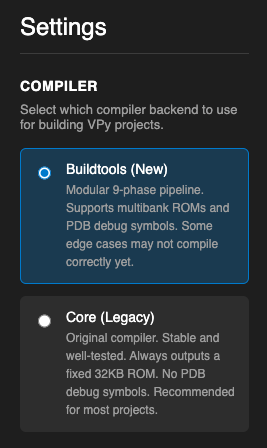
Build Target
The build target determines what hardware the compiled binary runs on. It is also a per-installation setting.
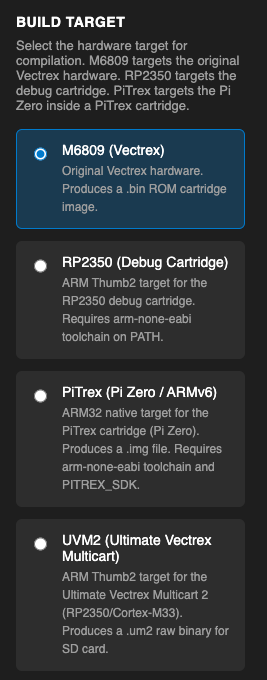
M6809 — Vectrex
The default. Produces a .bin ROM image for real Vectrex hardware or the IDE emulator. No external toolchain required — the assembler is bundled.
RP2350 — Debug Cartridge
ARM Thumb2 output for an RP2350-based debug cartridge. Requires arm-none-eabi-gcc on your PATH. The IDE emulator can run RP2350 binaries without hardware.
PiTrex — Pi Zero / ARMv6
ARMv6 native binary for the PiTrex expansion board (a Raspberry Pi Zero inside the Vectrex). Requires arm-none-eabi-gcc and the PITREX_SDK environment variable pointing to a local PiTrex SDK checkout.
Copy to SD card on build — when enabled, the IDE copies the compiled .img file to an SD card path automatically after every successful build. Useful for tight hardware iteration loops: build, card ejects, card in Pi, test.
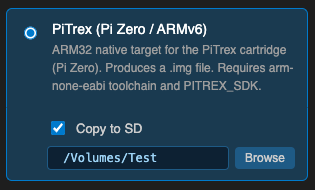
To configure: check Copy to SD and enter the path to your SD card's root (e.g. /Volumes/PITREX on macOS or /media/user/PITREX on Linux). Click Browse to pick the folder from a file dialog.
UVM2 ⚠️
Early scaffolding for a third-party vector display platform. Not ready for use.
Project File (.vpyproj)
The build target and output path are also readable from the project file, but the IDE Settings panel takes precedence for interactive builds. The .vpyproj values are used by the command-line compiler (vpy-build).
[build]
target        = "vectrex"       # m6809 | pitrex | rp2350 | uvm2
output        = "build/game.bin"
optimization  = 2
debug_symbols = true
See the Compiler page for the full project file reference and command-line usage.