
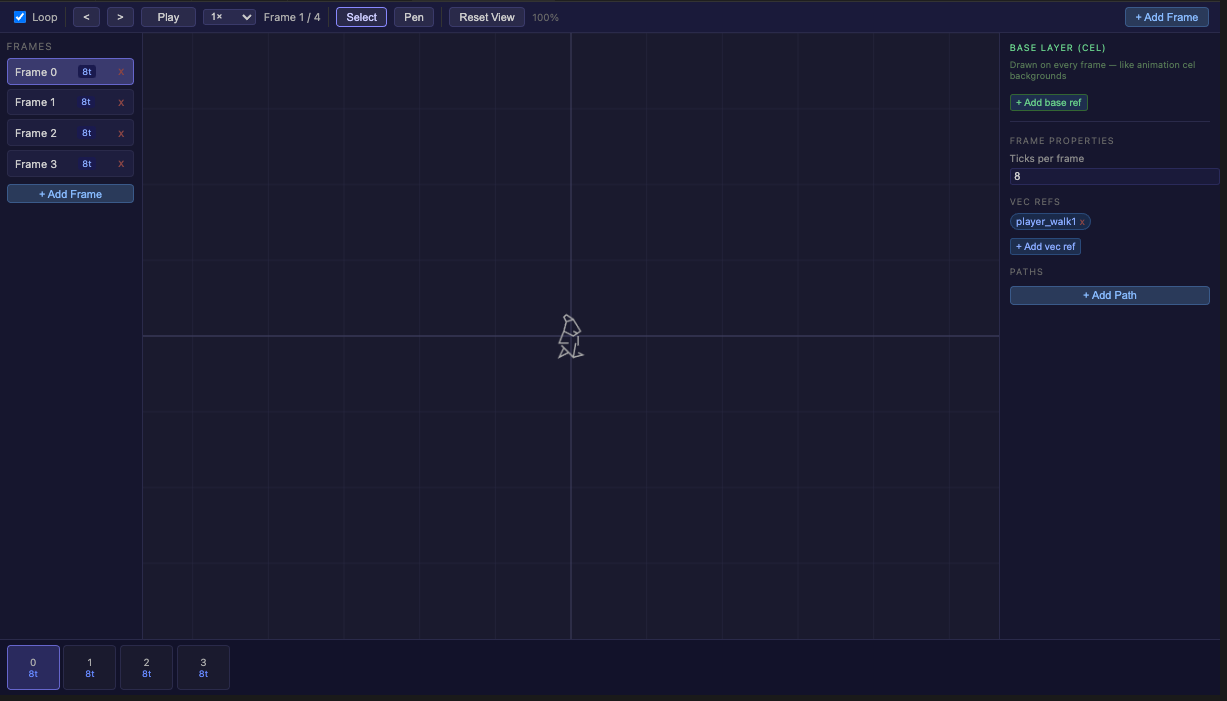
The Animation Editor opens when you create or double-click a .vanim file. It lets you build sprite animations frame by frame, combining reusable .vec assets with per-frame inline paths.
Concepts
A .vanim file has two kinds of content:
| Type | Where | Purpose |
|---|---|---|
| base_refs | Animation level | .vec assets drawn on every frame (body, head). Shown dimmed in green so you can see them while drawing per-frame parts. |
| vec_refs | Per frame | Additional .vec assets drawn only on this frame. |
| paths | Per frame | Inline vector segments drawn only on this frame — ideal for legs, blinks, effects. The compiler turns these into synthetic vec assets at build time. |
Using base_refs for the static parts and paths for the animated parts keeps files small and avoids duplicating geometry.
Frame list
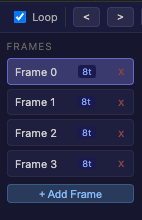
The left sidebar shows every frame as a card with its index and duration in ticks. Click a frame to select it and see it on the canvas.
- + Add frame — append a new blank frame.
- Duplicate — copy the selected frame.
- Delete — remove the selected frame.
- Drag frames to reorder them.
Canvas and tools
| Tool | Use |
|---|---|
| Select | Click or drag to select points; drag selected points to move |
| Pen | Click to add a point to the current inline path; click the first point to close |
Scroll wheel zooms; middle-mouse drag pans. A crosshair marks the origin (0, 0).
Base refs are drawn dimmed in green — they are visible for reference but cannot be edited here. Open the corresponding .vec file to edit them.
Properties panel
With a frame selected, the right panel shows:
| Field | Description |
|---|---|
| Duration (ticks) | How long this frame is displayed at 50 Hz. 12 ticks ≈ 0.24 s. |
| vec_refs | List of .vec asset names to draw on this frame. |
| paths | Inline paths: intensity slider (0–127) and point list. |
Click + Add path to add a new inline path to the current frame. Click a path to select it and edit its points on the canvas.
Timeline
The timeline at the bottom shows all frames as a horizontal strip. Click any frame to jump to it. During playback, the playhead scrolls automatically.
Playback
Use the toolbar controls to preview the animation:
| Control | Action |
|---|---|
| Play / Pause | Start or stop playback |
| ‹ / › | Step one frame backward or forward |
| Speed | Playback multiplier: 0.1× to 4× |
| Loop | Toggle looping |
File format
{
  "version": "1.0",
  "name": "player_walk",
  "loop": true,
  "base_refs": ["player"],
  "frames": [
    {
      "index": 0,
      "duration_ticks": 12,
      "vec_refs": [],
      "paths": [
        { "intensity": 127, "points": [{"x": -2, "y": 4}, {"x": -2, "y": 0}] },
        { "intensity": 127, "points": [{"x":  2, "y": 4}, {"x":  2, "y": 0}] }
      ]
    },
    {
      "index": 1,
      "duration_ticks": 12,
      "vec_refs": [],
      "paths": [
        { "intensity": 127, "points": [{"x": -2, "y": 4}, {"x": -4, "y": 0}] },
        { "intensity": 127, "points": [{"x":  2, "y": 4}, {"x":  4, "y": 0}] }
      ]
    }
  ]
}
In VPy code, play an animation with:
DRAW_ANIM("player_walk", x, y, mirror) # mirror=1 to flip horizontally