
Joystick & Gamepad Configuration
The Vectrex has a single analog joystick and four buttons per controller. Vectrex Studio maps your physical gamepad or keyboard to those inputs in the emulator.
Open Tools → Joystick Config to configure each player's controller.
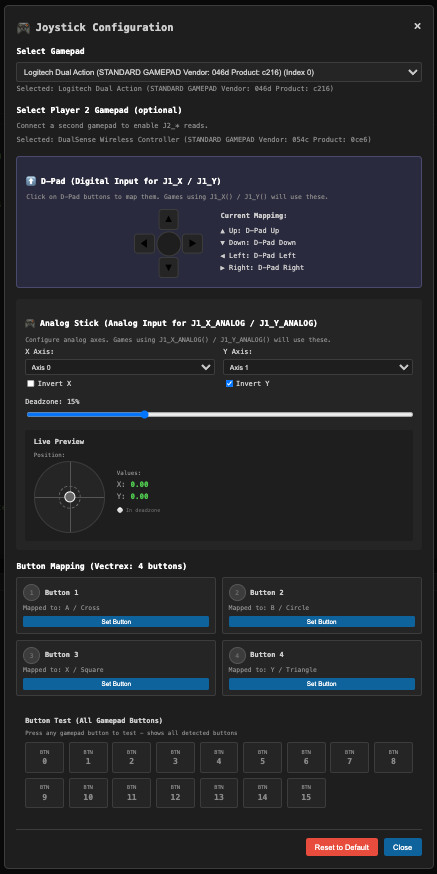
Axes
| Setting | Description |
|---|---|
| X Axis index | Which gamepad axis maps to horizontal movement. Click Detect and push the stick left/right to auto-detect. |
| Y Axis index | Which gamepad axis maps to vertical movement. Click Detect and push the stick up/down. |
| Invert X / Invert Y | Flip the axis direction if the joystick feels backwards. |
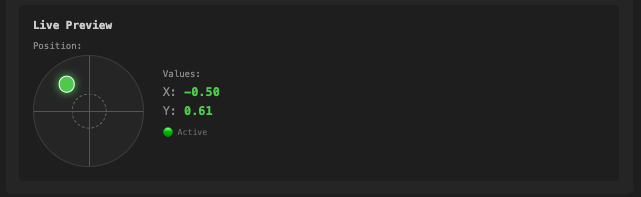
| Deadzone | Fraction of the axis range (0.0–1.0) to ignore around the centre. Increase if you see unwanted drift. |
A live axis visualiser shows the current raw values and the deadzone boundary while you adjust.
D-pad
For gamepads that have a D-pad as discrete buttons (rather than a hat axis), map each direction individually. Click the direction button in the dialog, then press the corresponding physical button — the mapping is recorded automatically.
Vectrex Buttons
The Vectrex has four buttons (1–4). Each maps to a physical gamepad button. Click the Vectrex button slot in the dialog, then press the physical button to assign it.
Common default mappings (Xbox-style gamepad):
| Vectrex Button | Physical Button |
|---|---|
| Button 1 | A (South) |
| Button 2 | B (East) |
| Button 3 | X (West) |
| Button 4 | Y (North) |
Keyboard Fallback
If no gamepad is connected, the emulator falls back to keyboard controls:
| Key | Vectrex Input |
|---|---|
| Arrow keys | Joystick |
| Z / X / C / V | Buttons 1–4 |
Two-Player Setup
Open the config dialog a second time with Player 2 selected in the top dropdown to configure a second controller independently.
Keyboard Shortcut Reference
File
| Shortcut | Action |
|---|---|
| Ctrl+N | New VPy file |
| Ctrl+O | Open file |
| Ctrl+Shift+O | Open project |
| Ctrl+S | Save |
| Ctrl+Shift+S | Save As |
| Ctrl+W | Close current tab |
Build
| Shortcut | Action |
|---|---|
| Ctrl+F7 / Cmd+F7 | Build |
| F5 | Build and Run |
Debug
| Shortcut | Action |
|---|---|
| Ctrl+D / Ctrl+F5 | Start debugging |
| Shift+F5 | Stop debugging |
| F9 | Toggle breakpoint on current line |
| F10 | Step Over |
| F11 | Step Into |
| Shift+F11 | Step Out |
| F5 (during debug) | Continue to next breakpoint |
Git
| Shortcut | Action |
|---|---|
| Ctrl+K | Stage current file |
| Ctrl+Shift+C | Commit |
| Ctrl+J | Push |
| Ctrl+L | Pull |
| Ctrl+G | Quick branch switcher |
| Ctrl+Shift+G | Open Git panel |
| Ctrl+Shift+F | Search commit history |
| Alt+D | Diff current file |
View
| Shortcut | Action |
|---|---|
| Ctrl+Shift+E | Focus file tree |
| Ctrl+` | Toggle terminal / build output |